How to Change the Chrome Start Page
Chrome treats startup, Home, and new-tab pages differently. Change the right setting and keep important links ready on every new tab.
Updated
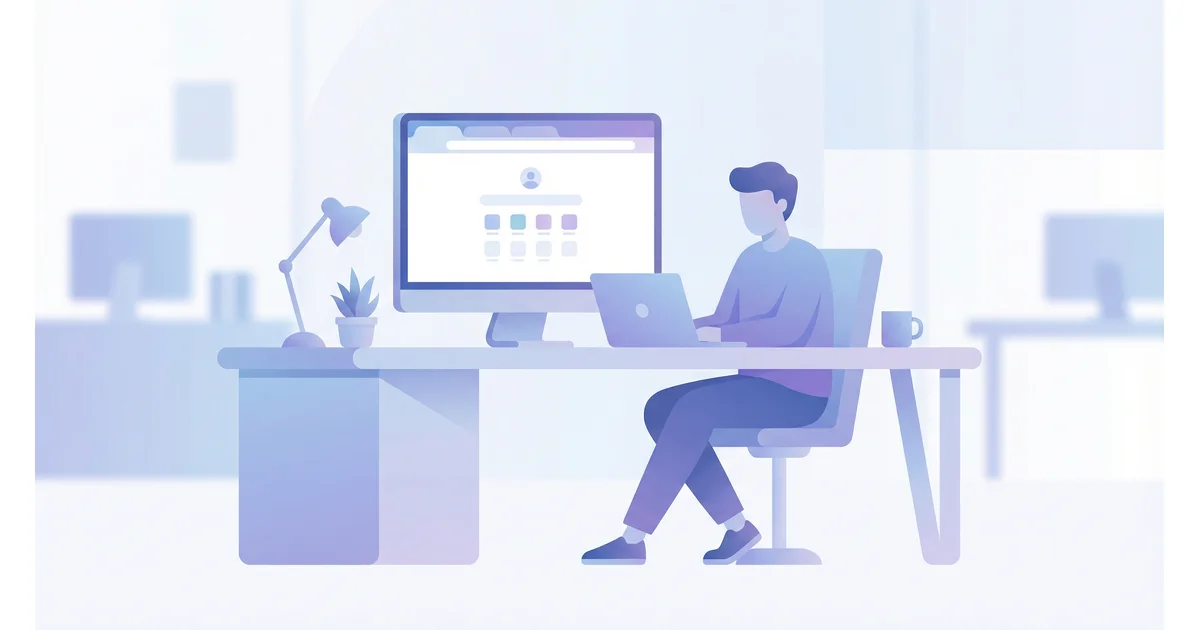
Chrome has three different starting surfaces: pages opened when the browser launches, the optional Home button, and the page shown by a new tab. Changing one does not automatically change the others.
Choose the surface you want to change
- On startup: open Chrome settings, choose “On startup,” then select a new tab, the previous session, or specific pages.
- Home button: open Appearance settings, enable the Home button, and enter the page you want.
- New tab: install an extension that declares permission to replace Chrome's new-tab page.
Use TabRover for the new-tab page
TabRover replaces the default new tab with a visual workspace. A board holds columns, groups, and links; Inbox captures a useful page before you decide where it belongs. Search finds titles, URLs, descriptions, and group names in the current board.
The extension keeps a local browser copy of the workspace. Saved links remain available during a temporary internet or server interruption, and the workspace opens directly whenever you create a new tab.
Check the result
- Open a new tab and confirm the expected page appears.
- Pin the extension only if you want quick Inbox capture.
- Keep a backup before importing or reorganizing a large bookmark collection.
For the difference between these surfaces, read the browser start-page definition. If the main problem is bookmark clutter, use the bookmark organization guide.
Frequently asked questions
How to create your own start page in Chrome?
What is a browser start page?
Do you need an extension for a custom new tab?
Can I use multiple start pages?
Put your workspace on every new tab
Keep organized links ready from a local browser copy when the connection drops.