A Visual Bookmark Manager Built for Your New Tab
Turn hidden bookmark folders into a visible workspace organized by project, with quick capture, search, and Chrome bookmark import.
Updated
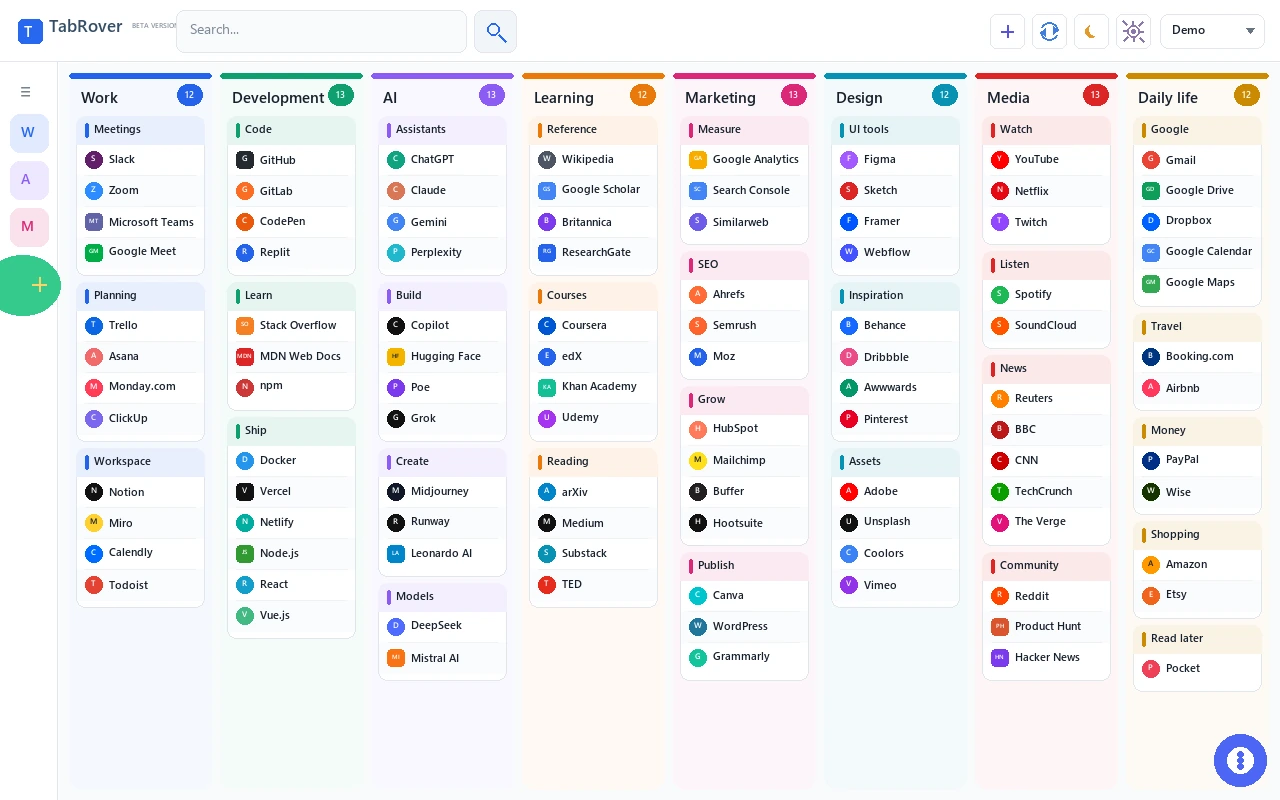
Traditional bookmark folders hide context. TabRover puts project links into a workspace you can scan before you open anything.
A visual bookmark manager changes the question from “Which folder did I use?” to “Which project am I working on?” Instead of opening menus and reading a long tree of titles, you see related resources together. One board can hold analytics, briefs, documents, meeting tools, and reference sites in separate columns and groups. With an active TabRover license, additional boards can separate clients, research topics, or other projects.
What makes bookmarks visual?
Visual organization is not simply a grid of large icons. The useful part is visible context. TabRover uses four levels: a board for a project or area, columns for categories or stages, groups for related resources, and links for exact destinations. The structure stays on the new tab page, so it appears at the moment you are most likely to choose where to go next.
For example, a Work board might contain a Communication column with Slack and Zoom, a Planning column with Trello and Asana, and a Development column with GitHub, Docker, and Stack Overflow. With additional boards unlocked, a Research board might group Wikipedia, arXiv, and Google Scholar.
| Task | Traditional folders | TabRover workspace |
|---|---|---|
| Understand a project | Open folders one at a time | Scan related groups in one view |
| Save during focused work | Choose a final folder immediately | Send the page to Inbox and sort it later |
| Find an old resource | Remember its folder or browse the tree | Search the current board across titles, URLs, descriptions, and group names |
| Switch between projects | Navigate back through menus | Open another board when an active license unlocks additional boards |
| Use links on a new tab | Open the bookmark menu first | See the workspace automatically with the extension |
Build a map around the way you work
A board is the top level. Use it for a client, product, research topic, course, or part of life. Columns divide that board into useful lanes such as Plan, Build, Measure, and Publish. Groups collect links that belong together. The result is a map of recurring resources rather than a pile ordered only by the date you saved it.
You can drag items as the project changes. A tool that began in Research can move into Daily Work. A temporary reference can move to an Archive group. The structure is flexible, but it remains explicit enough to scan.
Start with the decisions you make repeatedly
A useful visual board reflects choices you make during a normal day. Before creating categories, list the destinations you reopen every week. Then ask what you need to recognize first: the client, the stage of work, the type of resource, or the next action. Use that answer for the board and column structure. Do not begin by reproducing every old bookmark folder.
Keep column names short and concrete. “Planning,” “Build,” “Reporting,” and “Reference” communicate more at a glance than broad labels such as “Miscellaneous.” Inside each column, groups can separate tools, documents, dashboards, and research. A link belongs where you expect to look for it, even when its website category would suggest somewhere else.
A fresh TabRover install starts with one board. That is enough to test the model with an active project before committing to a larger system. If separate projects need their own top-level spaces, an active TabRover license unlocks additional boards and manual theme controls.
Save first. Decide where it belongs later.
Choosing the perfect folder can interrupt the task that made a page useful. TabRover provides an Inbox for that moment. The extension action sends the current page to Inbox. You can continue working, then sort captured links into the right board, column, and group when you have time.
Inbox is intentionally a holding area, not another permanent archive. Review it regularly, move useful links into the workspace, and remove what no longer matters. This keeps quick capture from creating a second unsorted collection.
Search when scanning is not enough
A visual layout helps when you remember the project or neighboring tools. Search helps when you remember only part of a name or address. TabRover searches the current board across link titles, URLs, descriptions, and group names. That combination supports two different kinds of memory: where something belongs and what it was called.
Current-board search is deliberately scoped. It helps you stay inside the context you already chose instead of mixing every client, topic, and personal link into one result list. When you use one board, search covers that board. With additional boards enabled by an active license, open the relevant board first and then search within it.
Bring in your existing Chrome bookmarks
You do not need to recreate every saved link manually. TabRover can import existing Chrome bookmarks, then you can reshape them into a board, columns, and groups. An active TabRover license unlocks additional boards. Import is a starting point, not an automatic promise that an old folder tree will become a perfect workspace. Review the result, remove stale links, and organize the resources you still use.
- Install TabRover from the Chrome Web Store.
- Import your existing Chrome bookmarks.
- Create one board for an active project or area.
- Arrange its links into a few clear columns and groups.
- Use Inbox for new pages and search when visual scanning is not enough.
A practical weekly maintenance routine
The best bookmark system is small enough to trust. Spend a few minutes each week reviewing Inbox, opening questionable links, and removing destinations that no longer serve the project. Move frequently used links toward the top of a group. Rename vague groups so their purpose is obvious without opening them.
When a project changes stage, update the board rather than starting over. A Research column can become Archive; a Planning group can move beside Delivery. This keeps the layout aligned with current work. If a board becomes hard to scan, the problem is usually too many categories at the same level. Combine near-duplicates or move low-use references into one clearly named group.
Open tabs should represent work in progress, not act as permanent reminders. Once a useful destination has a reliable place on the board, you can close it and reopen it when needed. TabRover does not close tabs for you or preserve a session; it gives recurring resources a home so the browser window does not have to do that job.
Where a visual bookmark manager helps most
Client and agency work
Keep the client website, analytics, reports, briefs, advertising tools, and meeting links together. Switching clients becomes a board change instead of a search through mixed browser folders.
Development and research
Group repositories, documentation, environments, tickets, papers, and reference sites by project. Permanent resources remain visible without keeping every page open as a reminder.
Learning and personal planning
Use columns and groups to separate courses, travel, finance, health, or things to watch. With an active TabRover license, add separate boards where that extra division helps. Familiar public destinations such as YouTube, Spotify, Reuters, BBC, and Wikipedia make categories easy to recognize.
How to evaluate a visual bookmark manager
Test the workflow with real tasks, not only a polished empty page. Can you capture a useful link without stopping to classify it? Can you identify a project resource after a week away? Does search cover the information you remember? Can you import what you already have? Does the new tab remain readable when the collection grows?
Also check the product boundary. A focused link workspace should not be judged as an RSS reader, task manager, or tab-session tool. Decide whether you need permanent destinations, changing browser sessions, live widgets, public sharing, or a long-term reading archive. Choosing the category first prevents a long feature list from hiding the actual job.
What TabRover does not try to replace
TabRover is focused on recurring links. It is not an RSS reader, calendar, task manager, weather dashboard, long-form read-later archive, or full tab-session restorer. If your main goal is live widgets, a portal such as Start.me may fit better. If you need to save and reopen whole browser sessions, Toby is designed around that job. If public boards and co-ownership matter most, Papaly provides those workflows.
TabRover is the stronger fit when you want a permanent visual map of work resources on each new Chrome tab. The web version is also available, but the extension is what replaces the default new tab page automatically.
Choose the right starting point
Read the bookmark organization guide, learn how to create a custom Chrome new tab, or compare TabRover with Papaly, Start.me, and Toby. For data handling and browser permissions, read the TabRover privacy policy.
Frequently asked questions
What is a visual bookmark manager?
Can TabRover import Chrome bookmarks?
Does TabRover replace the Chrome new tab page?
Can I save a link before choosing a group?
Does TabRover restore complete tab sessions?
Can I use TabRover without the extension?
Official sources
Make your bookmarks visible
Install TabRover, import your Chrome bookmarks, and organize the links you use into a workspace on every new tab.